 Guides
How to Replace a Character in a Video With AI
Makernice Team ·
Prices as of November 10, 2026 (price list v12).
To replace a character in a video with AI, keep the motion and change only the appearance. The workflow shared on X in November 2026 has four steps: RGB motion capture of the source video, retargeting with foot-sliding fixes, the open-weights MiniMax H3 model as the base, and the H3 Character Swap LoRA with one character image. For a steady, simple clip, the LoRA alone is enough.
What does the character swap demo show?
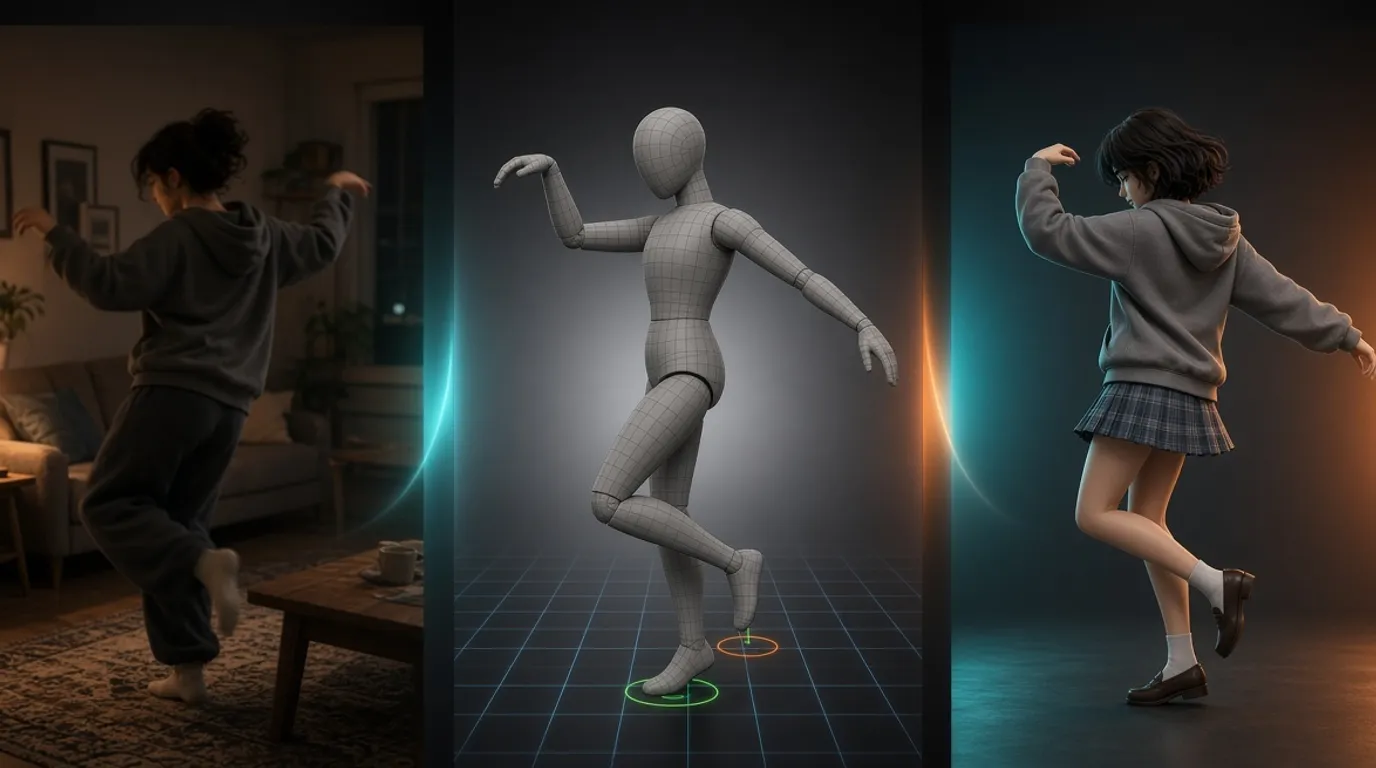
The demo above, posted by @OJI3_NIKKE as "RGBMoCap to H3 Character Swap LoRA", runs the whole pipeline in one desktop tool. The left pane is the source: a phone video of someone dancing in a living room, with a Find person button that picks the dancer to track. The middle pane is the motion capture: a gray 3D body mesh copies the dance on a grid floor, with green and orange circles marking when each foot touches the ground. Toggles for Bone Overlay, Floor Grid, Correction Floor and Motion Path, plus an AI Motion Model menu, are the cleanup controls. The right pane is the result, a new character in a gray hoodie and plaid skirt doing the same dance while the camera orbits to top-down and side views the phone never filmed. A timeline at the bottom holds the clip in segments.
William (@DLKFZWilliam2) broke the demo down into four steps. The rest of this guide follows that order, with the tools you can use for each step and where each one is optional.
What are the four steps to replace a character in a video?
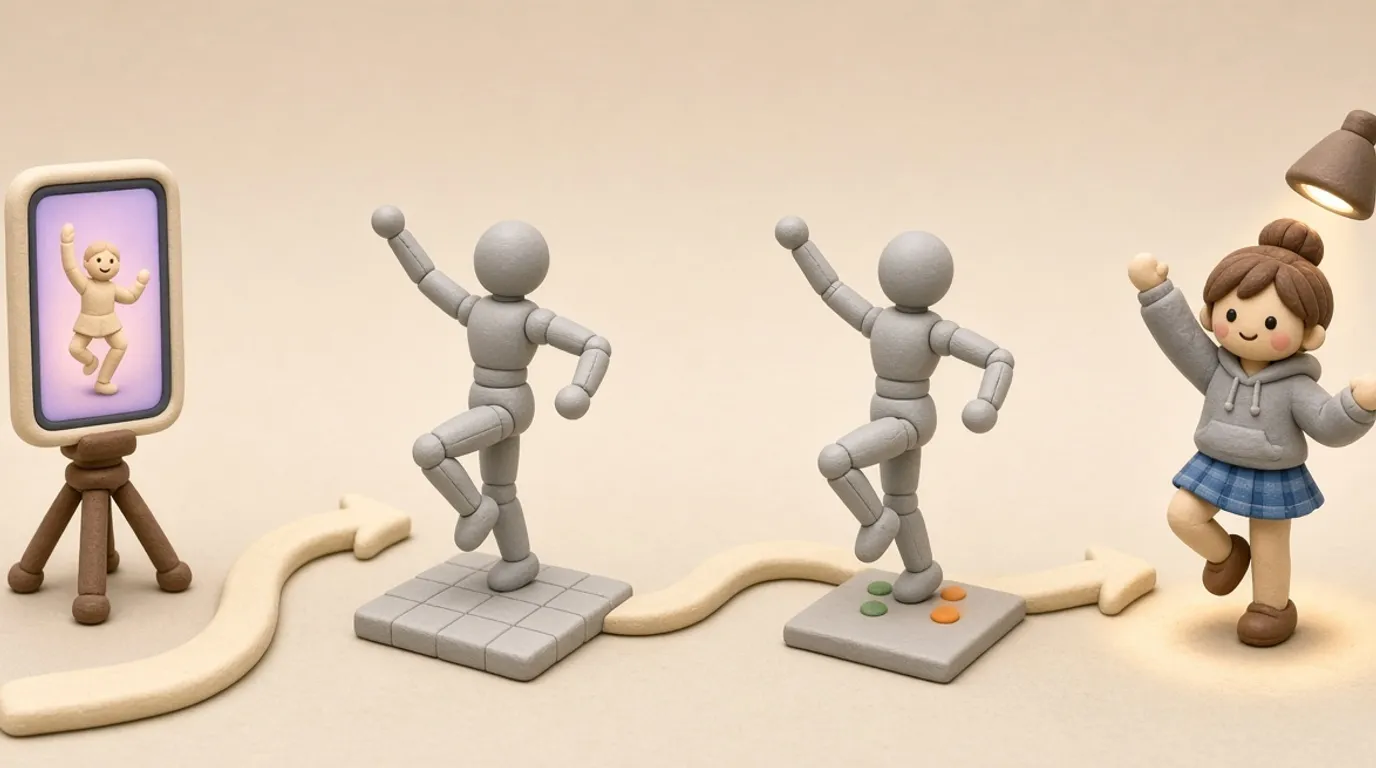
- 1. Motion capture. Turn the person in your video into a 3D body that moves frame by frame (an SMPL or SMPL-X body).
- 2. Retarget and clean up. Move that motion onto your character's skeleton, fix sliding feet and limbs passing through the body, and export it as a 3D render or as pose and depth control layers.
- 3. Generation base. Load MiniMax H3, an open-weights video model, in ComfyUI.
- 4. Character swap. Apply the H3 Character Swap LoRA with your character image so H3 redraws the person while following the source motion.
What do you need before you start?
- A source video with one person, their whole body in frame and as little blocking as possible. Use your own footage or footage you have permission to use.
- A character reference image: one clear, full-body image of the new character, front-facing, with the outfit fully visible. Use a designed or AI-generated character you own or are licensed to use, not a real person.
- A GPU running ComfyUI, local or rented. Check the H3 and LoRA model cards for the files and memory they need.
- Optional for steps 1 and 2: a monocular motion capture tool and Blender for retargeting.
Step 1: How do you turn a video into motion capture with AI?
Video to motion capture with AI means estimating a 3D human body for every frame of an ordinary video shot on one camera, with no suits or markers. The output is usually a sequence of SMPL or SMPL-X parameters: body pose, body shape and where the body sits in the scene. The open-source options below differ mainly in license and in whether they place the body in world coordinates, which matters when the camera moves.
| Tool | What it gives you | License |
|---|---|---|
| GVHMR | World-grounded body motion from a single video, built for moving cameras | Education, research and non-profit use only |
| TRAM | Global trajectory and body motion from in-the-wild videos | MIT |
| WHAM | World-grounded body motion; no updates since April 2024 | MIT |
| 4D-Humans | Per-person tracking and body reconstruction (HMR 2.0) | MIT |
Two checks before you rely on the result. First, the SMPL-X body model and its relatives come with their own license, separate from the code that uses them, so read it before commercial work. Second, tracking breaks where the video breaks: limbs leaving the frame, another person crossing in front, or heavy motion blur. Trim those frames or reshoot rather than fixing them later.
Step 2: How do you retarget the motion and fix foot sliding?
Retargeting moves the captured motion from the estimated body onto the skeleton of your target character, which can have different proportions. A common route is to export the motion as FBX or BVH and retarget it in Blender; the Rokoko Blender add-on does this and expects the target character in a T-pose. Then clean up three things the demo's middle pane shows: feet that slide while they should be planted (the green and orange contact circles), a floor that is tilted or too high (Correction Floor), and jitter in the motion path.
The clean motion becomes the control signal for generation. You can render the retargeted character as a plain 3D video, or export pose and depth maps frame by frame as ControlNet-style control layers. This is also where a camera move gets added: once the motion is in 3D, you can render it from a top-down or side view that the original phone never filmed, which is what the orbiting camera in the demo is doing.
Step 3: Why use MiniMax H3 as the generation base?
MiniMax H3 is a video model with open weights on Hugging Face, released under the MiniMax H3 community license. Open weights are what make this workflow possible: you can load H3 in ComfyUI and attach a LoRA, which hosted APIs don't allow. The LoRA's model card lists Comfy-Org's repackaged H3 as its base and asks for the H3 Ref2VA base model, text encoder and VAEs, downloaded separately.
On Makernice, MiniMax H3 runs text-to-video, image-to-video, first and last frame, and reference-to-video with up to 5 reference images, at 5 to 15 seconds, 480p and 768p native, with 2K and 4K upscaled from 768p. It doesn't take a video as input and can't load a LoRA, so the character swap step itself runs in your own ComfyUI. Makernice is useful around it: making the character reference image, and testing how H3 draws your character in short shots before you spend GPU time on the swap.
Step 4: How do you use the MiniMax H3 Character Swap LoRA?
The H3 Character Swap LoRA replaces a selected person in a source video with the character from one reference image. Its model card recommends the V1.5 checkpoint at strength 1.0, loaded with a model-only LoRA loader. You pass the source video as <Video 1> and the character image as <Picture 1>, then describe who to replace and what the new character looks like. The author's workflow handles masking the person, sampling and extending the clip. A prompt in that shape:
Replace the dancer in <Video 1> with the character in <Picture 1>.
Character: short black hair, gray hoodie, blue plaid skirt, white socks, brown loafers.
Keep the source motion, timing, gaze and camera move.
Keep the room, lighting and every other person unchanged.- Start short. Begin with one continuous shot at 24 fps, as the model card suggests, and only extend once that shot holds up.
- Describe the new character, not the motion. The motion comes from the video; the prompt's job is the face, hair and outfit you want to keep.
- Review four things before extending: whether the face stays the reference identity, hands and fingers, expressions, and the joins between segments.
- If the character drifts back to the source person, use V1.5 rather than V1; the model card's comparison shows V1 losing the reference identity on some shots.
Do you need motion capture for an AI character swap?
Not always. Use this as a rule of thumb for when steps 1 and 2 are worth the extra work:
| Source clip | LoRA alone | Add motion capture and retargeting |
|---|---|---|
| Steady camera, one person, moderate motion | Usually enough | Optional |
| Fast dance, spins, limbs crossing the body | Can lose limbs or drift | Helps keep the body readable |
| New camera angle the source never filmed | Not possible | Required: render the 3D motion from the new view |
| Character with very different proportions | Body may stretch to fit the source | Retarget to the character's own skeleton |
What are the alternatives to this workflow?
Wan2.2-Animate is another open-weights option with a replacement mode that swaps a person in a video for a character image, under Apache-2.0. If you don't need to keep the exact source motion, you can skip video input altogether: generate the character image, then use MiniMax H3's reference-to-video or image-to-video with a prompt that describes the moves. That gives you a new clip inspired by the original rather than a frame-by-frame swap. For remaking a viral clip shot by shot, see how to recreate a viral AI video.
What should you check about rights and consent?
Only swap people in footage you shot or have permission to use, and only put a character on someone's performance if they agreed to it. Make the new character a designed or AI-generated character, never a real person's face or likeness, and don't make a clip that passes as a real performance by a real person. Label the result as AI-made where the platform asks. Check every license in the chain before commercial use: the motion capture code, the SMPL body model, the MiniMax H3 community license and the LoRA, which ships under the same H3 license. Music in the source video is a separate right; mute it or replace it with audio you can use.