

 Guides
How to Recreate a Viral AI Video Shot by Shot: A 5-Step Workflow
MakerNice Team ·
To recreate a viral short video with AI, you rebuild it one shot at a time: split the reference into shots, make a keyframe for each, swap in your own character or product with an image model such as ByteDance's Seedream 5.0, animate each keyframe with a video model such as Seedance 2.5 or Alibaba's Wan 3.0 on MakerNice, then cut the clips together in any video editor.
What are the five steps to recreate a viral video with AI?
| Step | Mode on MakerNice | Suggested models | Key limit |
|---|---|---|---|
| 1. Split into shots | None, done by hand | - | Note length, framing, camera move, action |
| 2. One keyframe per shot | t2i, or a frame you own | Seedream 5.0, Qwen3 Image | Only footage you shot or may use |
| 3. Swap in your subject | i2i | Seedream 5.0, Qwen3 Image | Up to 14 or 3 reference images |
| 4. Animate each shot | i2v, flf or r2v | Seedance 2.5, Wan 3.0, Kling 3.0 Pro | Whole seconds within the model range |
| 5. Stitch and add music | Not offered on MakerNice | Any video editor | Match the original timeline |
Step 1: How do you break a reference video into shots?
Watch the reference with a timeline open and mark every cut. Viral short videos usually rely on fast, regular cuts, so the shot list is the real recipe. For each shot, write down four things before you generate anything:
- Length in seconds, read from the cut points, so your clips can match the original rhythm.
- Framing, such as wide, medium or close-up, and where the subject sits in the frame.
- Camera move, such as a static shot, push-in, pan or handheld follow.
- Action and light: what moves during the shot, and whether it is warm, cold, bright or dim.
Step 2: How do you get one keyframe per shot?
If the reference is footage you shot yourself or are licensed to use, export one representative frame per shot. If it is not, do not reuse its frames: describe the framing you noted in step 1 in a text-to-image (t2i) prompt and generate a fresh keyframe with Seedream 5.0 or Qwen3 Image. Either way, prepare the keyframe at the framing you want in the final video, because most video models accept no aspect_ratio in image-to-video mode; among them only Seedance 2.0 and Seedance 2.0 Fast list ratios.
Step 3: How do you swap in your own character or product?
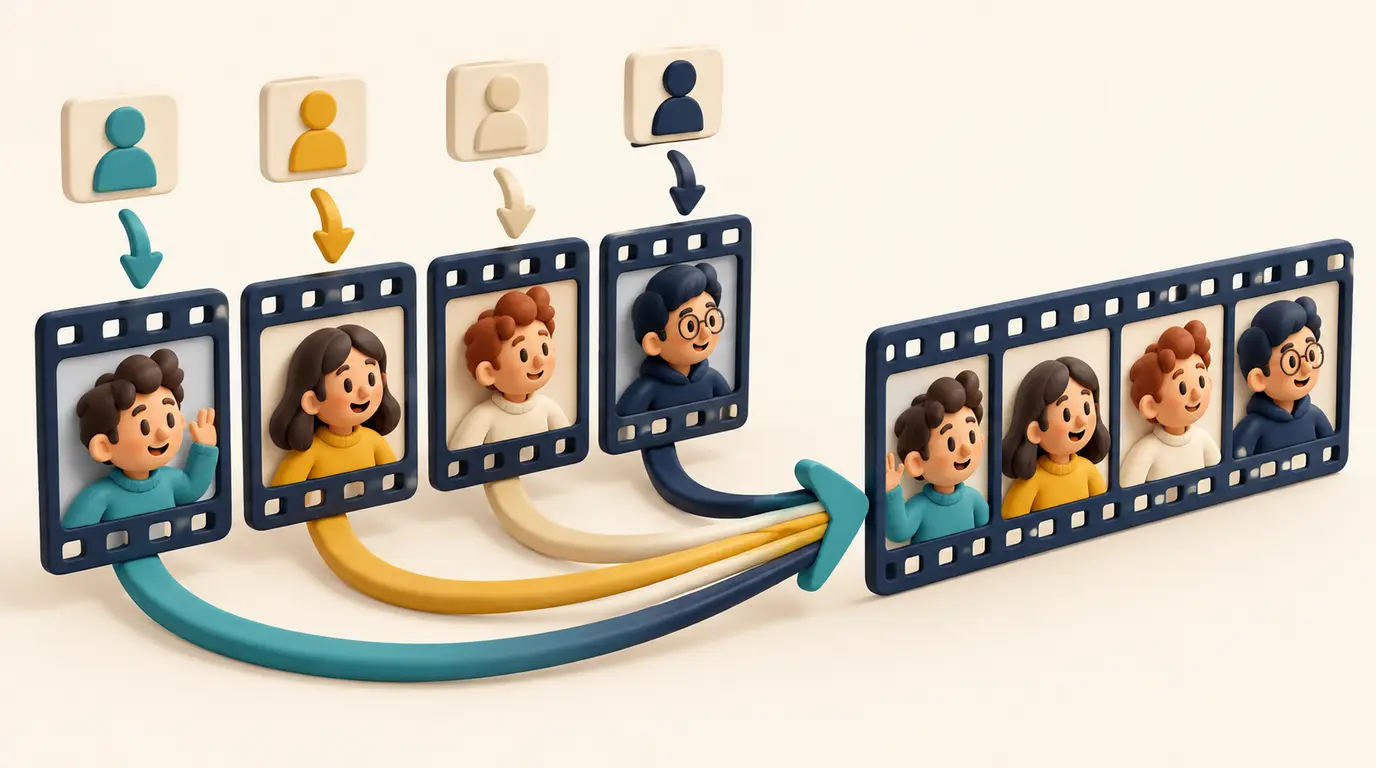
Use image-to-image (mode i2i). Put the keyframe and an image of your product or AI-generated character in reference_images as https URLs, and say in the prompt what to replace and what to keep, such as keep the layout and lighting, replace the cup with the product in the second image. Seedream 5.0 accepts up to 14 reference images, Seedream 5.0 Pro up to 10, and Qwen3 Image and Qwen3 Pro Image up to 3. For people, use an AI-generated character, yourself or someone who has given you permission, and reuse the same character image for every shot so the subject stays consistent.
Step 4: Which mode and model should you use to animate each shot?
| Model | i2v | flf | r2v references | Duration | Resolution |
|---|---|---|---|---|---|
| Seedance 2.5 | Yes | Yes | Up to 16 | 4 to 30 s | 480p, 720p, 1080p, 4k |
| Wan 3.0 | Yes | Yes | Up to 10 | 2 to 30 s | 480p, 720p, 1080p |
| MiniMax H3 | Yes | Yes | Up to 5 | 5 to 15 s | 480p, 768p, 2k, 4k |
| Happy Horse 1.1 | Yes | No | Up to 9 | 3 to 15 s | 720p, 1080p |
| Kling 3.0 Pro | Yes | Yes | No r2v | 3 to 15 s | No resolution field |
Image-to-video (mode i2v) is the default for remakes: your edited keyframe in image_url becomes the first frame, so the composition from step 3 survives, and the prompt only has to describe the camera move and action from your shot list. duration is a whole number of seconds inside the model range, so a 3-second shot fits Wan 3.0 directly; with Seedance 2.5, generate 4 seconds and trim. Generate each shot as its own request rather than one long clip.
{
  "model": "wan-3.0",
  "mode": "i2v",
  "prompt": "Shot 3 of 6: medium close-up, the barista slides the cup toward the camera, slow push-in, warm morning light",
  "image_url": "https://example.com/shot-03-keyframe.jpg",
  "duration": 3,
  "resolution": "720p"
}
Switch to first and last frame (mode flf, with last_image_url) when a shot must end on an exact pose or reveal. Use reference-to-video (mode r2v, with reference_images) when the shot is new rather than a match of a keyframe and you mainly need the same character or product to reappear; the clip then does not have to show any reference as a frame.
Step 5: How do you stitch the shots back together?
MakerNice does not stitch clips, so download each finished shot and assemble them in any video editor. Lay the clips on a timeline in the original shot order, trim each to the length you noted in step 1, then add music and captions. Kling 3.0 models always return clips with audio, so mute those tracks if you are adding a soundtrack of your own.
What can you copy from a viral video, and what should you avoid?
- Copy the structure: pacing, shot order, framing and camera moves are what make the format work.
- Use only reference footage you shot yourself or have the rights to use, and do not reupload someone else's video or frames.
- Feature AI-generated characters, not real people: even with consent, the MakerNice Acceptable Use Policy forbids face swaps and placing real people in scenes they never took part in.
For deeper detail on each step, read the image-to-video and first and last frame guide, the reference-to-video guide and the text-to-video prompt tips. To try a shot, open the Playground on a model page; to plan the cost, see the Pricing page or request a quote with the exact input.
Frequently asked questions
Can MakerNice remake a viral video automatically from a link or upload?
Can I put a real person's face into an AI video remake?
How short can a single shot be with Wan 3.0 or Seedance 2.5?
Should I use image-to-video or reference-to-video for a recurring character?
Models in this post
 Video
VideoSeedance 2.5
ByteDance's flagship for long takes: up to 30 seconds, 480p to 4K, and up to 16 reference images to keep every shot on-model.
 Video
VideoWan 3.0
-21%The widest duration range on MakerNice — 2 to 30 seconds — at 480p, 720p or 1080p, with every input mode and up to 10 references.
 Video
VideoKling 3.0 Pro
-4%Video that ships with sound: Kuaishou's Kling 3.0 Pro adds audio to every 3–15 second clip, from text, a still or first and last frames. 1080p tier.
 Image
ImageSeedream 5.0
-4%Blend up to 14 reference images into one: Seedream 5.0 is built for character sheets, collages and style fusion, priced as a single 2K tier.
 Image
ImageQwen3 Image
-21%Everyday images and quick edits: Alibaba's Qwen3 Image at 1K or 2K, eight aspect ratios, up to 3 references.